
Fintech Dashboard UX Evaluation
Evaluating and improving a data-heavy enterprise dashboard to better support user priorities, reduce cognitive load, and enable faster decision-making.
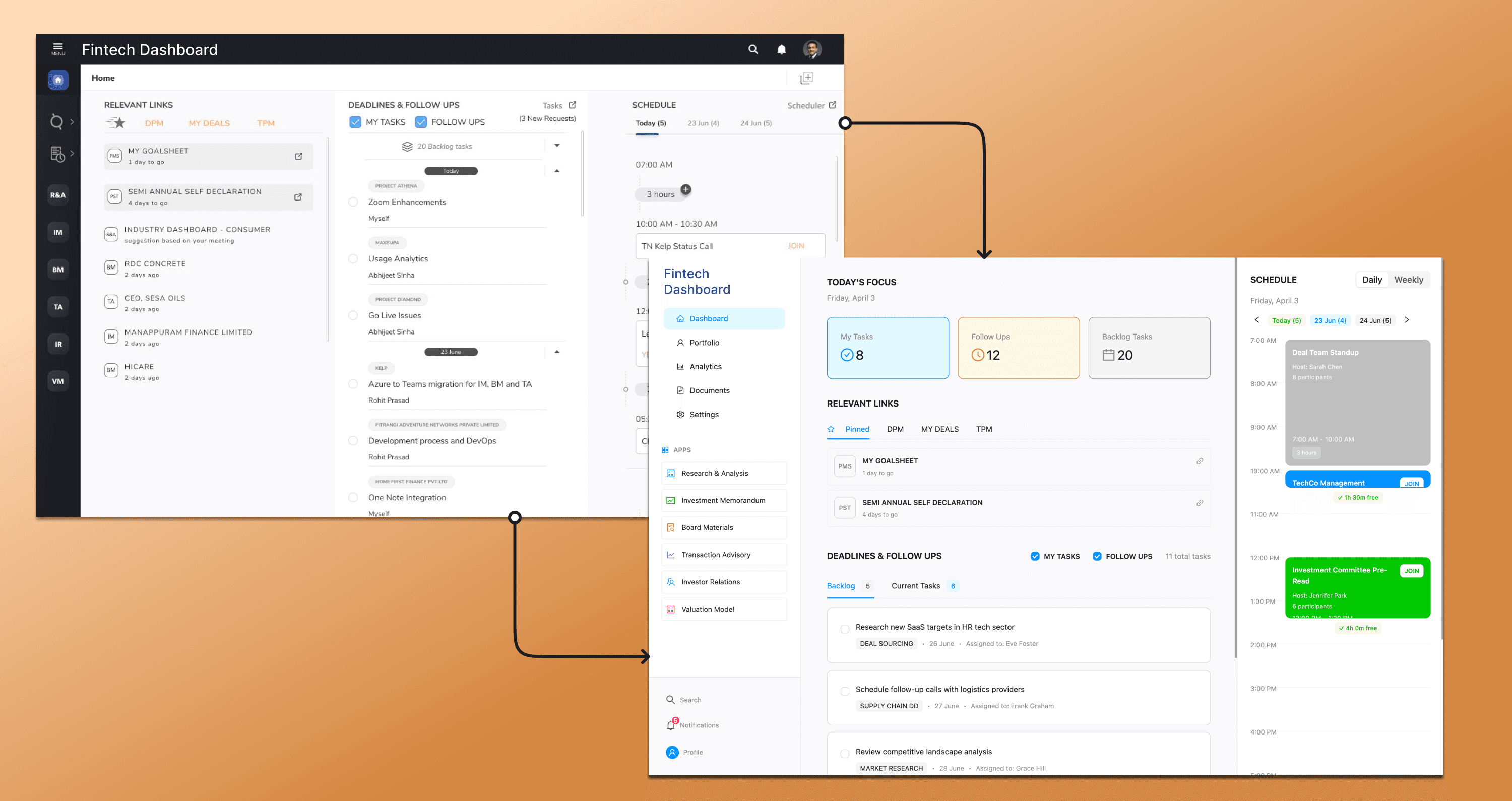
Overview
Recently progressed through early interview rounds at a fintech company and completed a hands-on design assignment focused on improving a complex, data-heavy enterprise dashboard.
Although the role required more senior experience, I progressed through the early rounds but did not secure the final offer.
This project became an opportunity to demonstrate:
Structured problem-solving
UX thinking for enterprise workflows
Ability to simplify high-density interfaces
👉 This case study captures that process.
The Brief
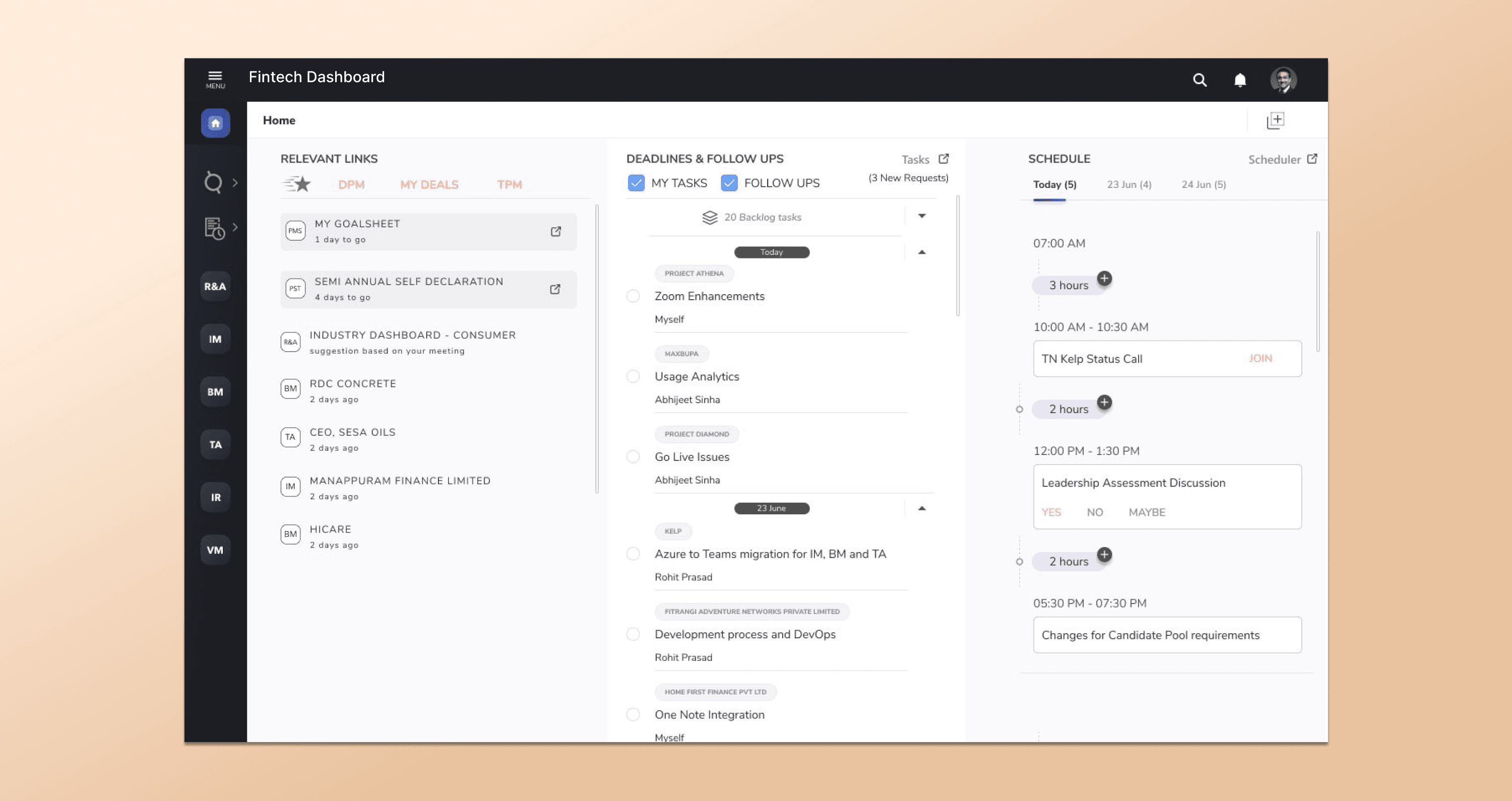
Original dashboard shared as part of the assignment, used as the baseline for evaluation
I was asked to evaluate and improve a Home dashboard used by Private Equity professionals.
The dashboard acts as:
A landing screen (Home)
A hub for:
Daily tasks
Meetings & schedule
Recently used items
Navigation to mini-apps
The Ask
Identify what works well
Highlight areas of improvement
Document assumptions
Recommend better solutions
⏱ Constraint: Complete within 4 hours
Understanding context & assumptions
Applying UX First Principle
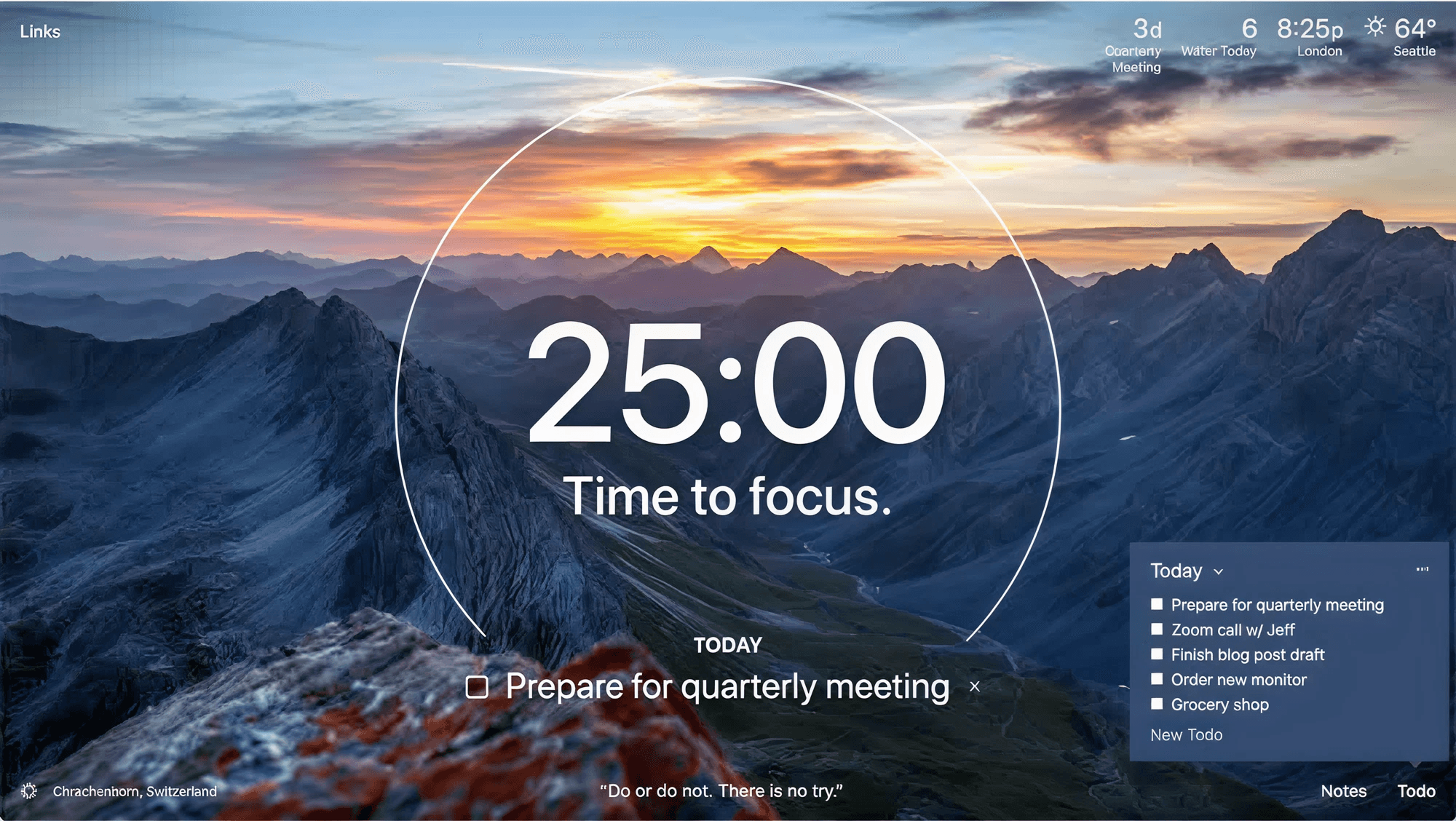
Momentum Dashboard
A to-do list, where I can manually add and track tasks
My upcoming meetings, fetched directly from Google Calendar
This setup works well for me because it answers three key questions immediately:
What do I need to do?
What’s coming up next?
What should I focus on right now?
Using this mental model helped me evaluate the Kelp Home dashboard more empathetically. I looked at the screen not just as a designer, but as a user asking:
Can I quickly understand my priorities?
Can I move from seeing information to taking action without friction?
Does the screen help me plan my day, or does it require extra effort to process?
This perspective influenced how I assessed information hierarchy, focus, and cognitive load across the dashboard, and it also shaped the recommendations around prioritization, scannability, and progressive disclosure.
What works well
Clear High-Level Structure (Good Information Architecture)
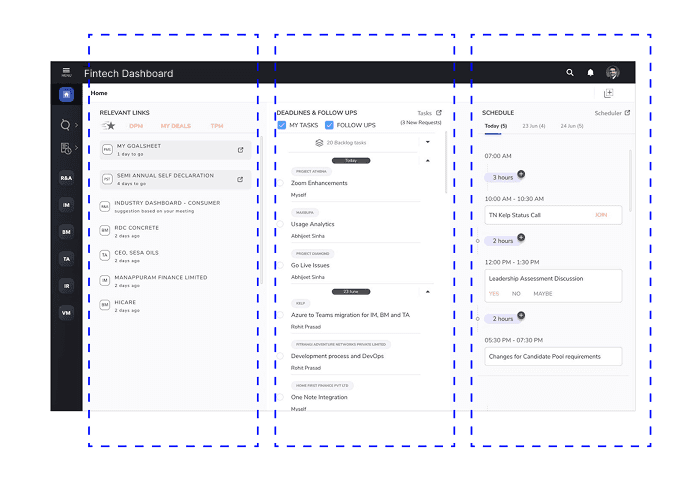
The Home screen is logically divided into three clear vertical zones:
Relevant Links on the left
Deadlines and Follow-ups in the center
Schedule and Meetings on the right
This structure matches the HCI principle of aligning the system with real-world workflows, reflecting users’ mental models of tasks and references.
Intuitive Visual Hierarchy & Recognition
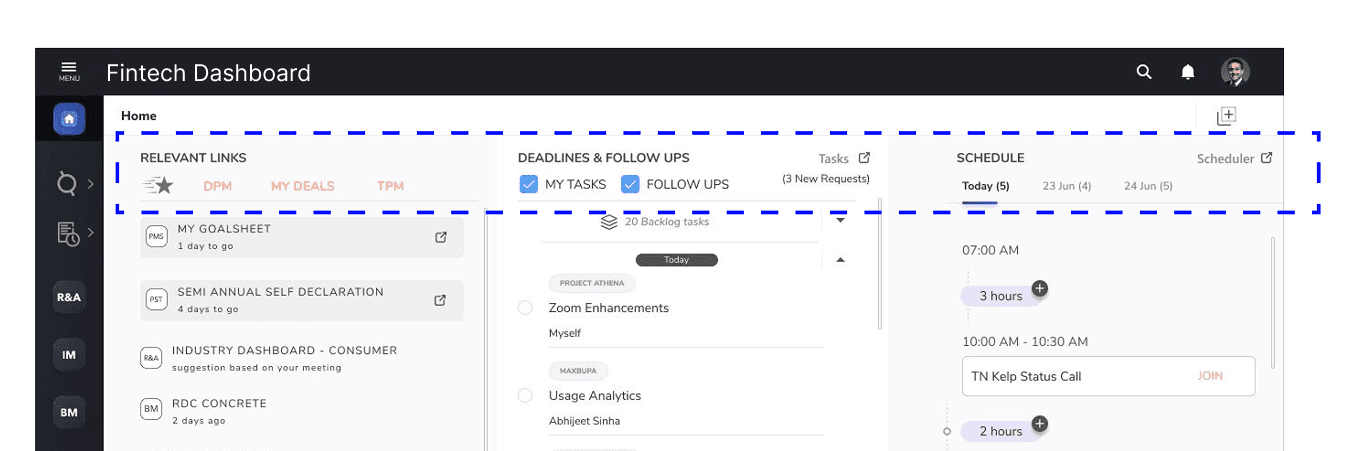
The visual hierarchy of the screen is mostly intuitive and helps guide user attention naturally. The center column (tasks and follow-ups) draws primary focus, followed by the schedule on the right, and then the relevant links on the left.
This hierarchy is supported by effective use of column width, card grouping, and typography weight, allowing users to quickly scan the screen. Clear labels such as “My Tasks,” “Follow Ups,” “Today,” and date indicators further reduce cognitive effort, as users don’t need to remember where information lives.
Consistent use of UI components across the screen supports familiarity and reduces cognitive load and learning curve for repeat users.
Together, this supports the UX principle of recognition over recall, making the dashboard easier to understand and faster to use, especially for repeat users.
Helpful Time & Task Visibility
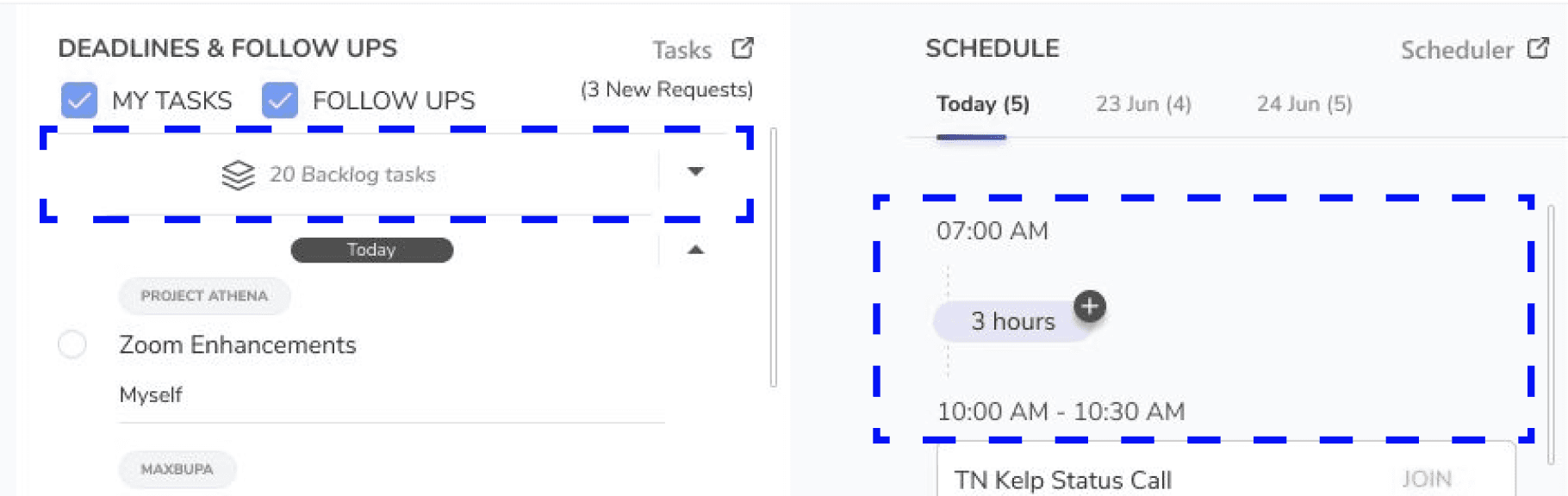
Schedule: Showing the available time between meetings is a thoughtful addition, as it helps users quickly understand their free slots and plan their work more effectively.
Deadlines & Tasks: Displaying backlog tasks alongside active tasks is helpful, as it provides visibility into upcoming work and helps users plan beyond just immediate deadlines.
What can be improved
Load Is Too High
The screen shows too much at the same priority level.
Everything looks “important”
No clear answer to:
👉 “What should I do first?”
Hick’s Law – too many choices increase decision time.
Weak Visual Priority
Users have to read instead of scan, Some component visual weight is same, eg: backlog tasks is same as todays tasks
Limited Flexibility in Schedule View
The schedule is limited to a 3-day view, which restricts users who want a weekly overview. Switching to the full scheduler adds extra effort, and adding items seems limited to visible gaps, making it harder to plan beyond the shown time range. This reduces flexibility and increases friction in day planning.
Left Navigation Is Overloaded
Too many icons with unclear meaning, No clear indication of:
Which section I’m in
What’s primary vs secondary
This increases learned dependency (bad for new users).
Everything Visible by Default
Showing backlog, future tasks and all meetings upfront makes the screen feel heavy,a better UX would surface only essential information first and reveal more on interaction.On Day 0, when there is no data yet, the screen may appear mostly empty, which can feel unclear or unhelpful for first-time users.
Inconsistent Visual Cues
In the schedule, meeting cards don’t clearly show who the meeting is with, reducing context at a glance. In the Relevant Links section, suggested items look similar to regular links, and the top tabs use different components and colors, leading to visual inconsistency.
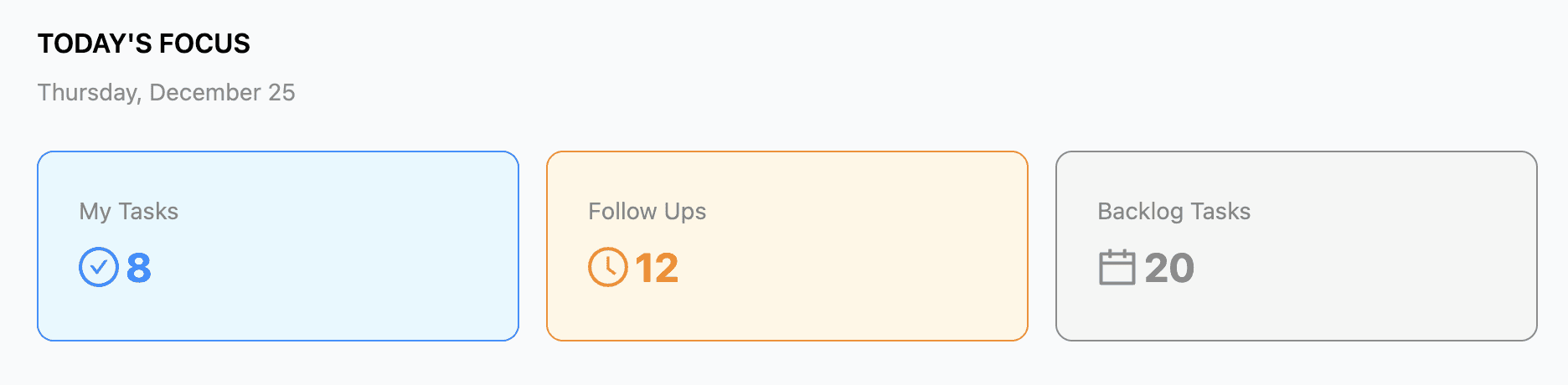
Introduce a Clear “Today’s Focus”
Add a Today’s Focus section at the top of the center column highlighting:
Tasks due today
Pending follow-ups
Upcoming meetings
Why: Reduces cognitive load, helps users decide what to do first, and supports goal-oriented behavior. This pattern works well in tools like Todoist, Things 3, and Notion.
Improve Task Hierarchy
Currently, all labels carry similar visual weight, Highlight the main action, use minimal indicators for status, and show supporting details as secondary.
This will improve scannability and speed up task comprehension.
Convert Backlog into a Tab
Place backlog in a separate Backlog (count) tab next to Current Tasks to keep focus on actionable items while allowing quick access when needed.

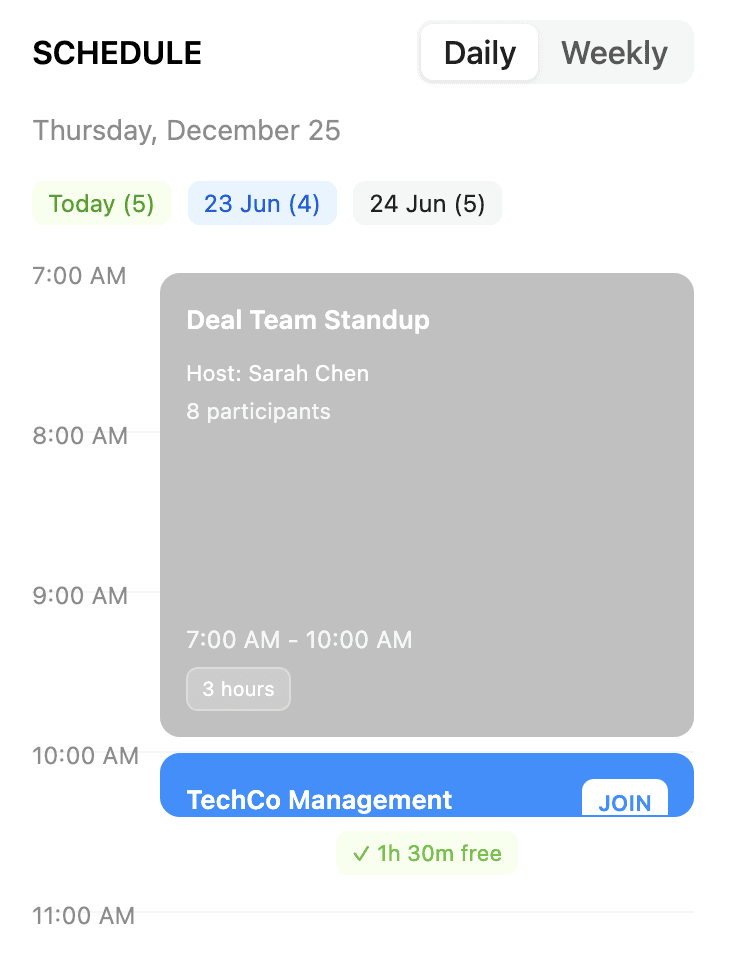
Make the Schedule More Calendar-Like
Improve the schedule with:
Clear time markers
Stronger visual separation for meetings
Lighter styling for free slots
Inline actions on hover
This will help users quickly understand availability and upcoming commitments.
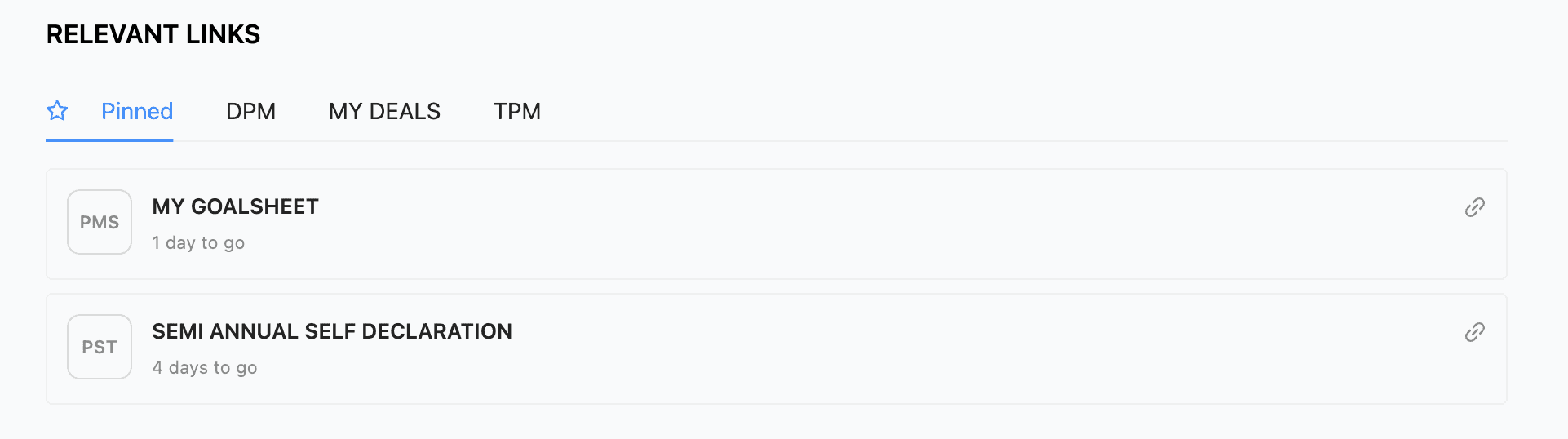
Reduce Noise in Relevant Links
Group links based on importance: Pinned (top), Recent, Suggested (collapsed by default)
Also, briefly indicate why a link is suggested to build clarity and trust.

Improve Navigation Discoverability
Icons-only navigation relies on memory,
Added labels, tooltips, or an expandable navigation to improve discoverability for new users.
Standardized UI Components
Use a consistent design system (e.g., Ant Design) to improve predictability and scalability.
Full UI Reference
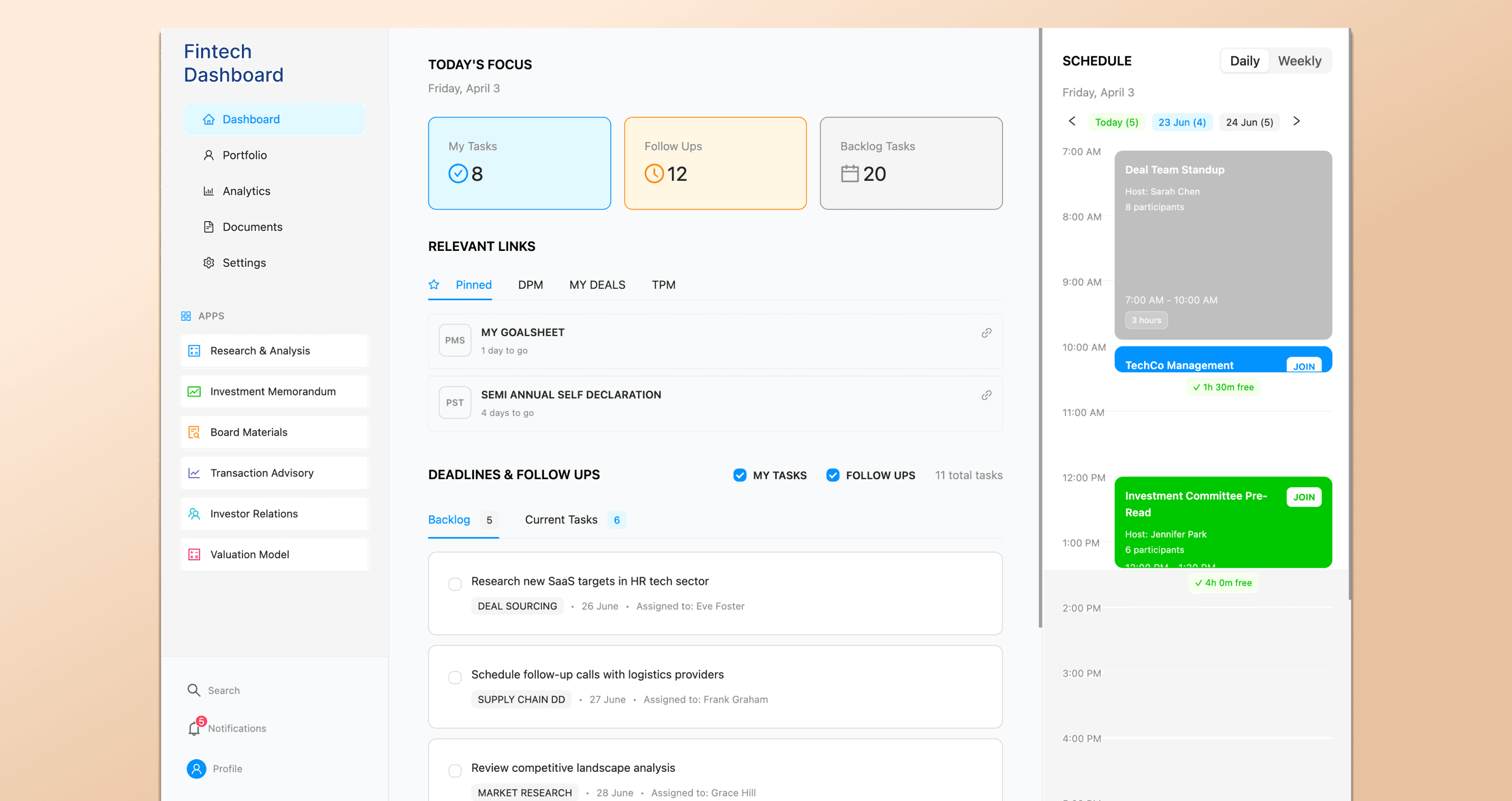
I have created a quick mock in Figma and added the link below for reference.
How I Approached This Assignment
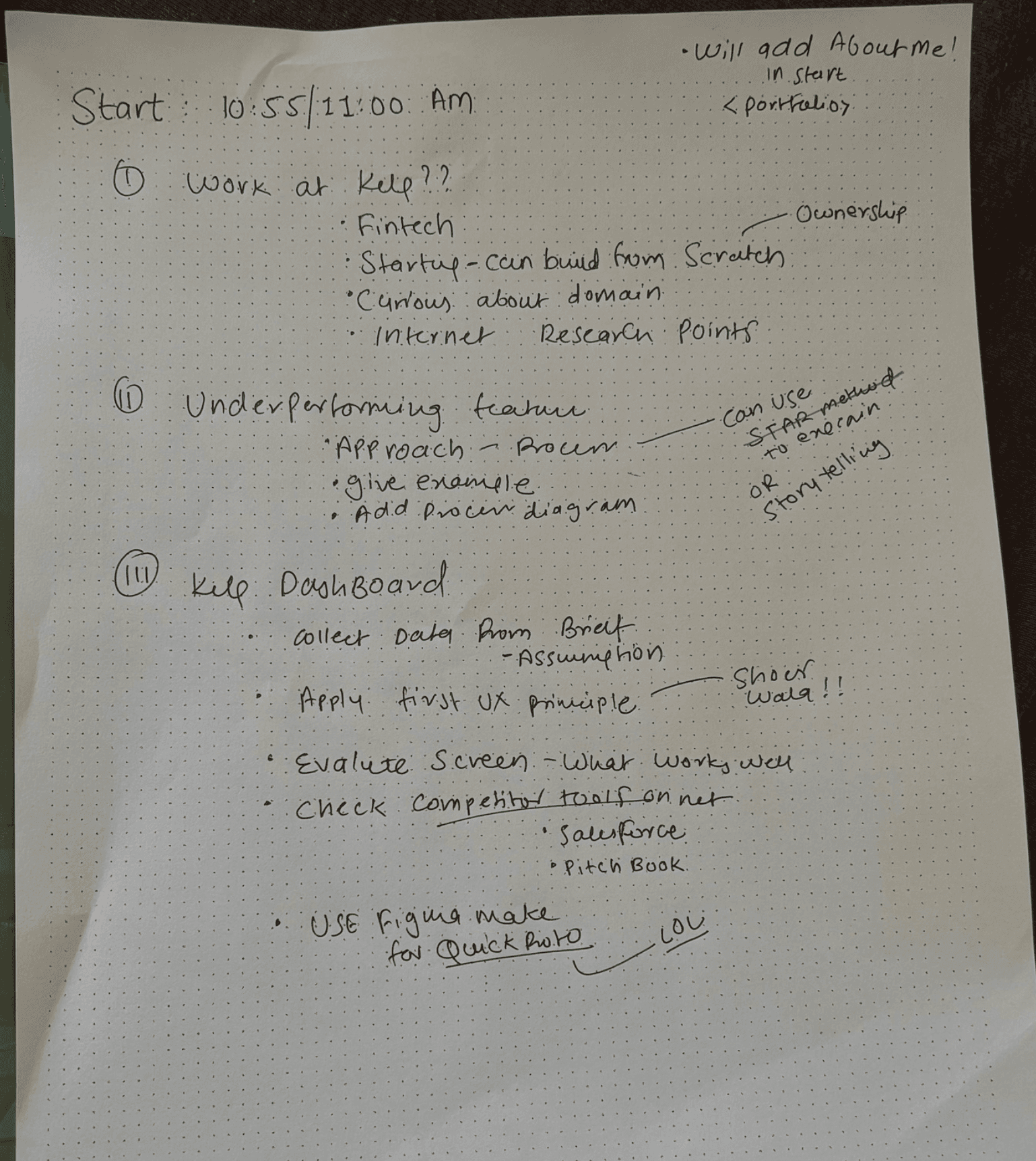
To give some context on how I worked on this assignment, I’ve added a few supporting artifacts at the end.
I started by understanding the brief and the constraints, and then reviewed the screen by putting myself in the user’s shoes. I also looked at similar tools in the same domain, such as Salesforce and PitchBook dashboards, to understand common patterns and expectations for enterprise users.
Once I had clarity, I grouped and prioritized the issues and mapped them to relevant UX and HCI principles. After that, I created a quick mock in Figma Make to visually explain the ideas
For reference, I’ve attached:
A page with rough idea and my working script
A sticky-note photo showing how I split and tracked my time across different parts of the assignment
I treated this assignment like a mini 4-hour hackathon and genuinely enjoyed working on it. I started around 11:00 AM and wrapped up by 3:30 PM, with a few short breaks in between due to house chores.
Special thanks to the tools that helped me move fast and stay focused: ChatGPT, Figma Make, and Canva.
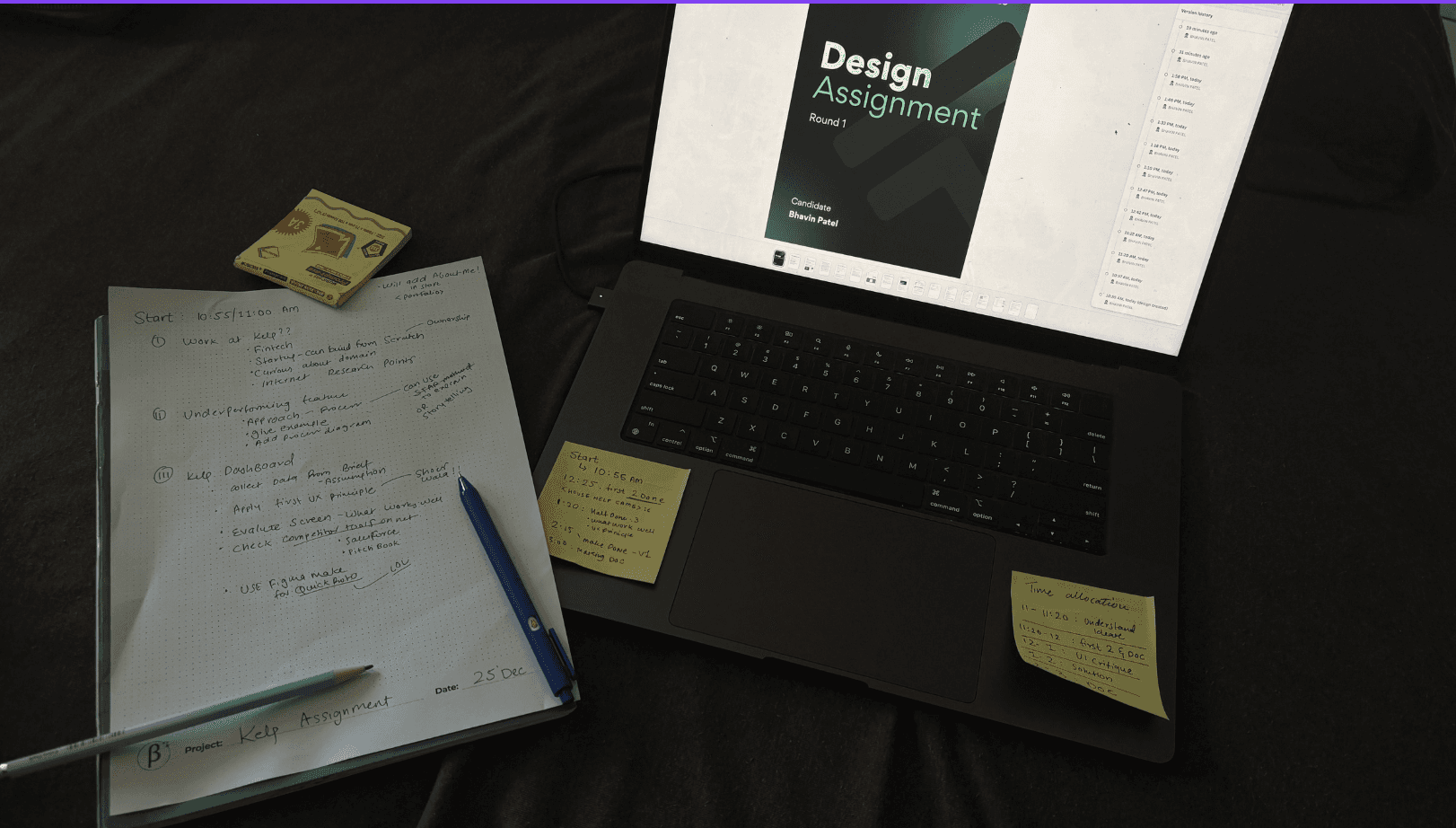
Workspace Snapshot
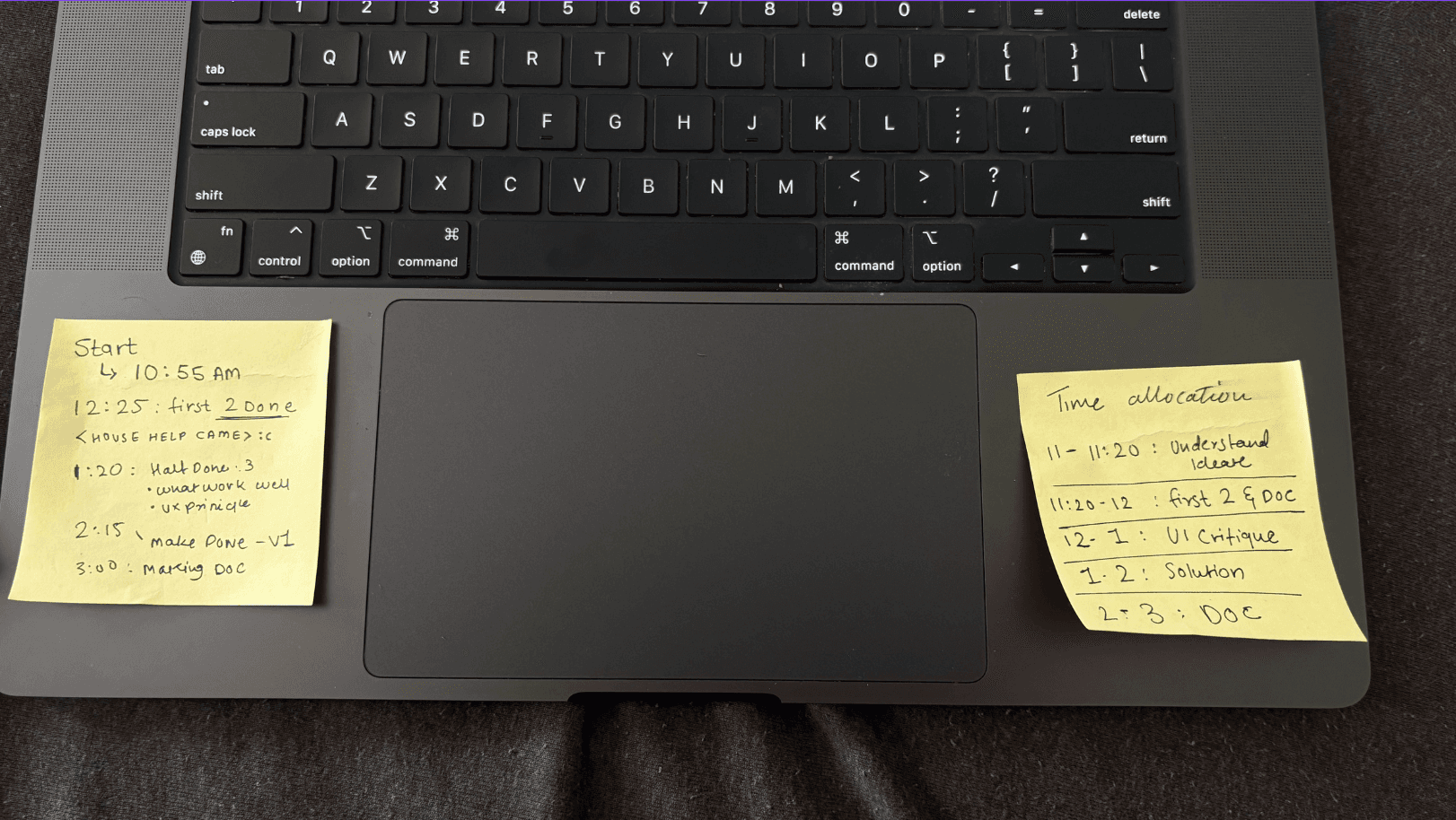
Time Planning Sticky Notes
My working script
Final Takeaway
This project reinforced that in complex systems, clarity matters more than completeness. Working within a 4-hour constraint pushed me to think clearly, prioritize effectively, and focus on what truly helps users make decisions.
PS: All content, concepts, and designs are my own and do not represent any organization; product and company names are placeholders; do not share without permission; icons and images belong to their respective owners.